


Skip to content
VIRTUAL Tattoo Simulator
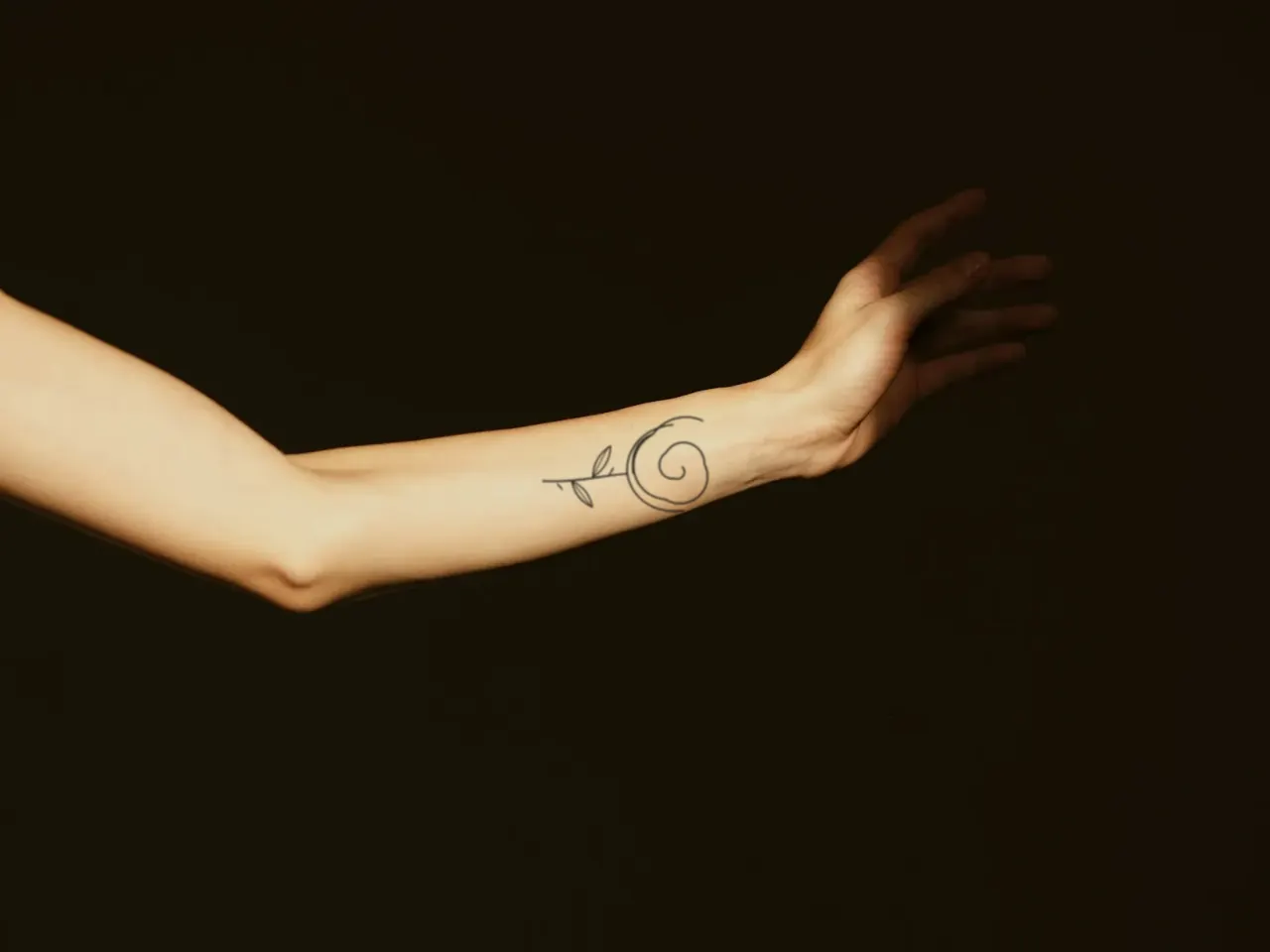
A forearm with a fine line rose tattoo, previewed in the simulatorThe same forearm without the tattoo

Tattoo simulator for your own photos

Place a design, wrap it around your arm and see it settle into your skin before it goes on for good. Free, no sign-up, and the photo never leaves your device.

No photo handy? Try one of ours

Your photo never leaves your device. Downloads are full size with a small watermark in the corner.

Flash

Sheet Nº 1 · 52 designs · six styles

Pick one to try it on your photo.


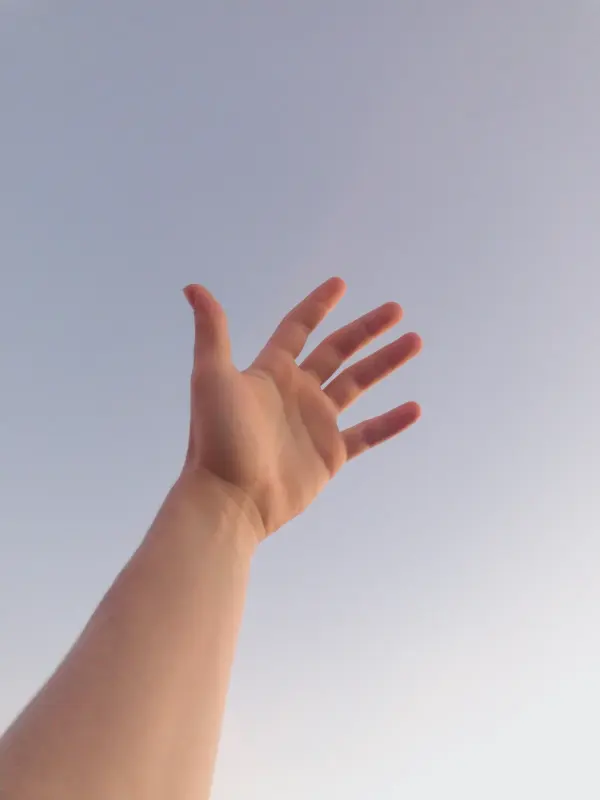
  • Wrist: sample photo for a 2–5 cm tattoo

    2–5cm

    Wrist

    Small symbols and a word or two. Fine lines this small blur first, so keep them simple.

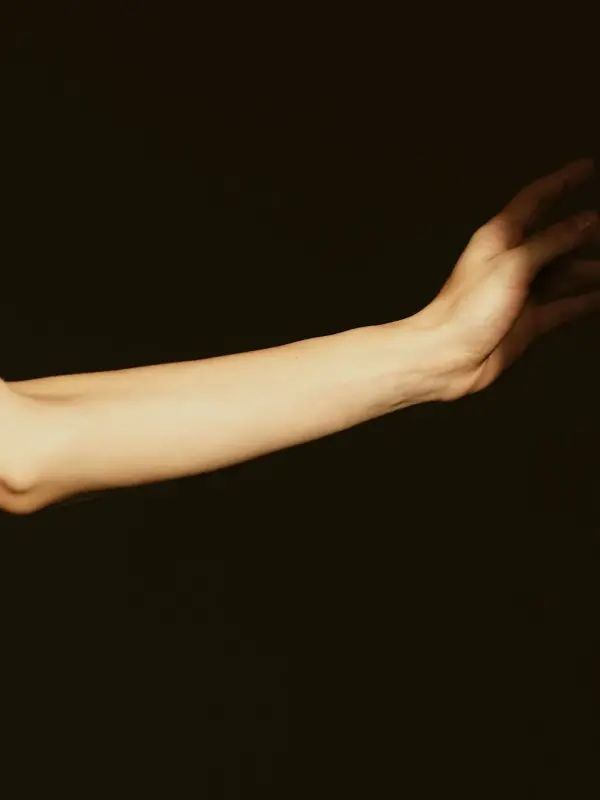
  • Forearm: sample photo for a 5–15 cm tattoo

    5–15cm

    Forearm

    Florals, lettering and long pieces that follow the arm. Use Wrap so the edges curve away.

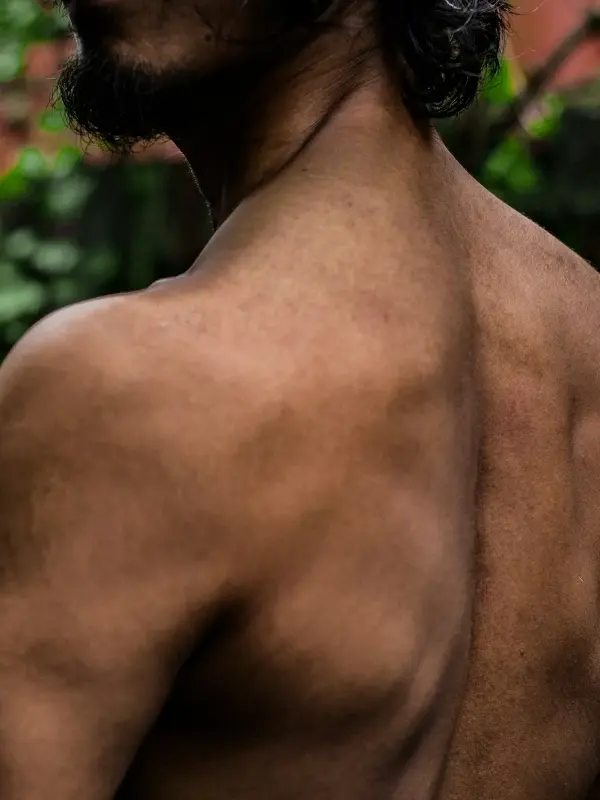
  • Shoulder: sample photo for a 8–15 cm tattoo

    8–15cm

    Shoulder

    Round designs sit well on the shoulder cap: mandalas, roses, suns.

  • Back: sample photo for a 15–40 cm tattoo

    15–40cm

    Back

    Room for large, symmetrical work along the spine or across the shoulder blades.

Compare spots side by side in Placement →

This virtual tattoo simulator places a design on your own photo and blends it into the skin, so you can judge size, placement and style before you book. Everything happens in your browser. The preview downloads as a PNG or JPG at your photo's size, up to 2048 pixels on the long side, with a small watermark in the corner.

How to try on a tattoo

  1. Add a photo. Upload a clear, well-lit photo of the body part, take one with your phone, or start with a sample.
  2. Pick a design. Choose from the library (fine line, minimalist, geometric, blackwork, traditional, Japanese and lettering), upload your own artwork, or type text in a tattoo font.
  3. Place it. Drag to move. Drag the corner handle to resize and rotate, or pinch with two fingers. A second design lands beside the first, ready to arrange.
  4. Fit it to your body. Use Wrap for arms, legs and wrists, or Free warp to bend the design over muscle and joints. Erase hides it behind hair, fingers or clothing.
  5. Download. Press Download and choose PNG or JPG.

Make it look like real ink

  • Skin texture puts the photo's own highlights back on top of the ink. Raise it on shiny or textured skin.
  • Ink bleed softens lines the way healed ink spreads slightly under the skin.
  • Fade shows how the tattoo might look in ten years: lower contrast, softer edges, a slight blue-gray shift.
  • Ink switches between the design's own colors, black, or a single color of your choice.

Tips for a better preview

  • Shoot in daylight, straight on, with the body part filling most of the frame.
  • Keep the arm or leg relaxed in the pose you would normally hold it in.
  • Try the design at two or three sizes. Fine detail that looks good at palm size can blur at coin size.

Common problems

  • My own design has a white box around it. Some paper isn't white enough to be removed. Select the design, open Adjust and check that Remove white background is on, then lower Cut-off until the paper disappears.
  • It looks flat on my arm. Choose Wrap in Adjust and raise Wrap strength until the edges curve away with your arm.
  • Hair or fingers are under the tattoo. Use Erase and paint over them, then Restore anything you took away by mistake.
  • There's text in the corner of my download. Every preview carries the site address, small and semi-transparent, in the bottom-right corner. Move the design away from that corner if they overlap.

Frequently asked questions

How do I use the tattoo simulator on my photo?

Upload a photo of the spot you have in mind, or tap a sample. Pick a design from the library, upload your own or type some lettering. Drag it into place, use the corner handle to size and turn it, then switch to Wrap if it sits on an arm or leg. Press Download when it looks right.

Can I upload my own tattoo design?

Yes. Choose Upload your own design in the Designs tab. A drawing on white paper, a photo of a sketch or a PNG all work: white backgrounds are removed automatically, and the Adjust tab lets you change the cut-off, soften the edges or keep only the line art if the paper texture shows.

How do I make the tattoo look real and not like a sticker?

The simulator multiplies the ink into your skin, so the light and shadow of your photo show through it. In Adjust, raise Skin texture to bring back pores and shine, add a little Ink bleed for soft healed lines, and use Wrap on rounded body parts. Erase lets hair or fingers sit in front of the tattoo.

Does it work on my phone?

Yes, it is built for phones first. Drag with one finger to move a design and pinch with two to resize and turn it at the same time. On a phone the Download button opens the share sheet, so you can save the preview to your photos or send it to a friend or your artist.

Can I try several tattoos at once?

Up to five designs can sit on one photo, and each new one is placed beside the last instead of on top of it. The Layers tab lets you reorder, hide, duplicate or delete them. To compare placements on different body parts, try the tattoo placement simulator.

Is my photo uploaded anywhere?

No. The simulator runs entirely in your browser: your photo and designs are processed on your own device and never sent to a server. You can check this in your browser's developer tools, where the Network tab shows no upload. Once the page has loaded it even keeps working offline.

Compared with AR tattoo apps

AR apps are fun for a quick look through the camera. To plan a real tattoo you want a still photo you can adjust, compare and show your artist.

This simulatorAR apps
InstallNone, it runs in the browserAR apps: An app download
Your photoStays on your deviceAR apps: Often sent to a server
ResultA PNG or JPG at your photo's sizeAR apps: A screenshot
Fit to the bodyWrap, free warp, eraseAR apps: A flat sticker
Sign-upNeverAR apps: Usually